Device guide
Australian IPTV Smart TV setup guide
Our Australian IPTV Smart TV guide covers the brands most common in Australian homes: Samsung (Tizen), LG (webOS), and Android TV or Google TV sets from Sony, TCL and Hisense. Because the player runs on the TV itself, you don’t need a separate stick or box, just the remote and your login details. Menus differ between brands and model years, so we’ve noted where they change.
Australian IPTV Smart TV: what you need before you start
- A Smart TV from roughly the last six years, connected to the internet
- A Samsung, LG or Google account signed in on the TV for its app store
- Your Australian IPTV login details
- The TV remote and your phone with the login open
Samsung and LG TVs use players from their own app stores, while Sony, TCL and Hisense models running Android TV or Google TV use Google Play. Some Samsung and LG players link your playlist through a device ID instead of a login screen; we handle that part for you.
How to set up Australian IPTV on Smart TV
- Press Home on your remote and open the app store: Apps on Samsung, the LG Content Store on LG, or Google Play on Android TV and Google TV models.
- Search for the player we recommend for your TV brand and install it.
- Open the player. If it shows a device ID or MAC address on the first screen, send us a photo of that screen on WhatsApp so we can link your playlist.
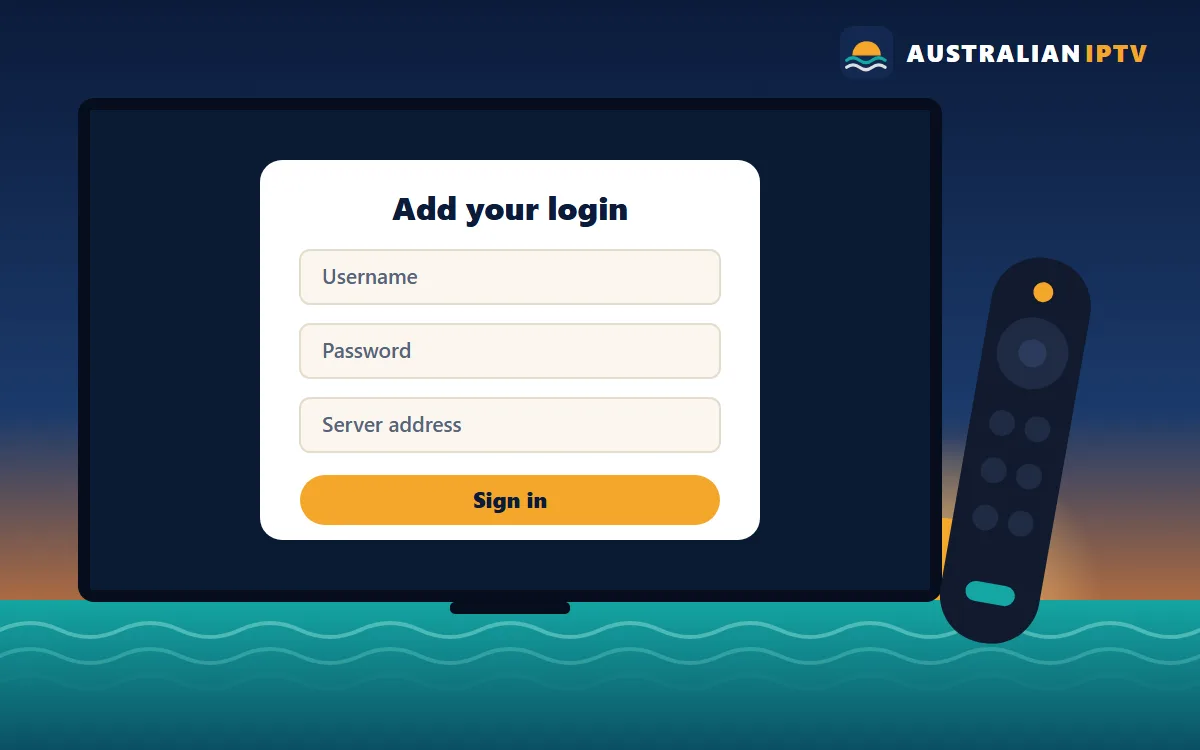
- If the player asks for login details instead, choose Add playlist and enter your username, password and server address, or paste the M3U link.
- Close and reopen the app so it loads the full channel list and program guide.
- In the player settings, set the time zone or guide offset to match your state.
- Test a few channels from different groups, then mark your favourites.
Already finished? Head to the Australian IPTV tutorial for tips on favourites and the program guide, or message us if a step looks different on your screen.
Australian IPTV Smart TV tips for smooth playback
- Smart TV Wi-Fi chips are often weaker than a phone’s. A cable from the router to the TV’s LAN port is the most reliable fix for buffering.
- For sport, turn off motion smoothing (called Auto Motion Plus, TruMotion or Motionflow depending on the brand) if movement looks unnatural.
- Keep the TV software updated: on Samsung look under Settings › Support, and on LG under Settings › General › About this TV.
- If your TV has a Quick Start or Instant On option, leave it on so the player opens faster after the TV wakes up.
Fixing common Australian IPTV Smart TV problems
Most Australian IPTV Smart TV problems come down to a typo in the login, an app that needs updating or a weak signal. These are the ones we see most often.
The player isn’t in my TV’s app store.
Older models have a smaller app catalogue. Tell us your brand and model number and we’ll suggest an alternative, or a low-cost streaming stick for the HDMI port.
The device ID screen won’t go away.
That means the playlist hasn’t been linked yet. Send us the ID shown on screen, wait for our confirmation, then restart the app.
The picture is cropped or stretched.
Change the aspect ratio in the player settings, or set the TV’s picture size to Fit to Screen or Just Scan.
Still stuck? Send a screenshot and your order number on WhatsApp and we’ll look at your line from our side.
Other Australian IPTV device guides
Setting up more than one screen? Each device has its own guide:
Ready to watch on Smart TV?
Choose a plan for 1, 2, 3 or 5 devices and we’ll send login details in the right format for Smart TV.